

Sometimes your customer needs to scrape a single document or report from their old system. Single Runs let you do this quickly using Scouts (our AI web agents).Documentation Index
Fetch the complete documentation index at: https://docs.vern.so/llms.txt
Use this file to discover all available pages before exploring further.
Important: Before running a scrape, your customer must have signed in and authorized Scouts via a Link. The Link allows Scouts to access and scrape data on their behalf.
When to Use Single Runs
Use a single Run when you need to scrape:- One specific document or report
- Data from a single page or source
- A quick, one-time scrape
Step 1: Create a Task
First, you need to create a Task that tells the Scout what to do. Go to the Tasks section in your dashboard and click “New Task.” You can use Task Studio to record your actions as you navigate the website, or manually enter instructions like “Navigate to the reports page and download the Employee Export.”Step 2: Create a Run
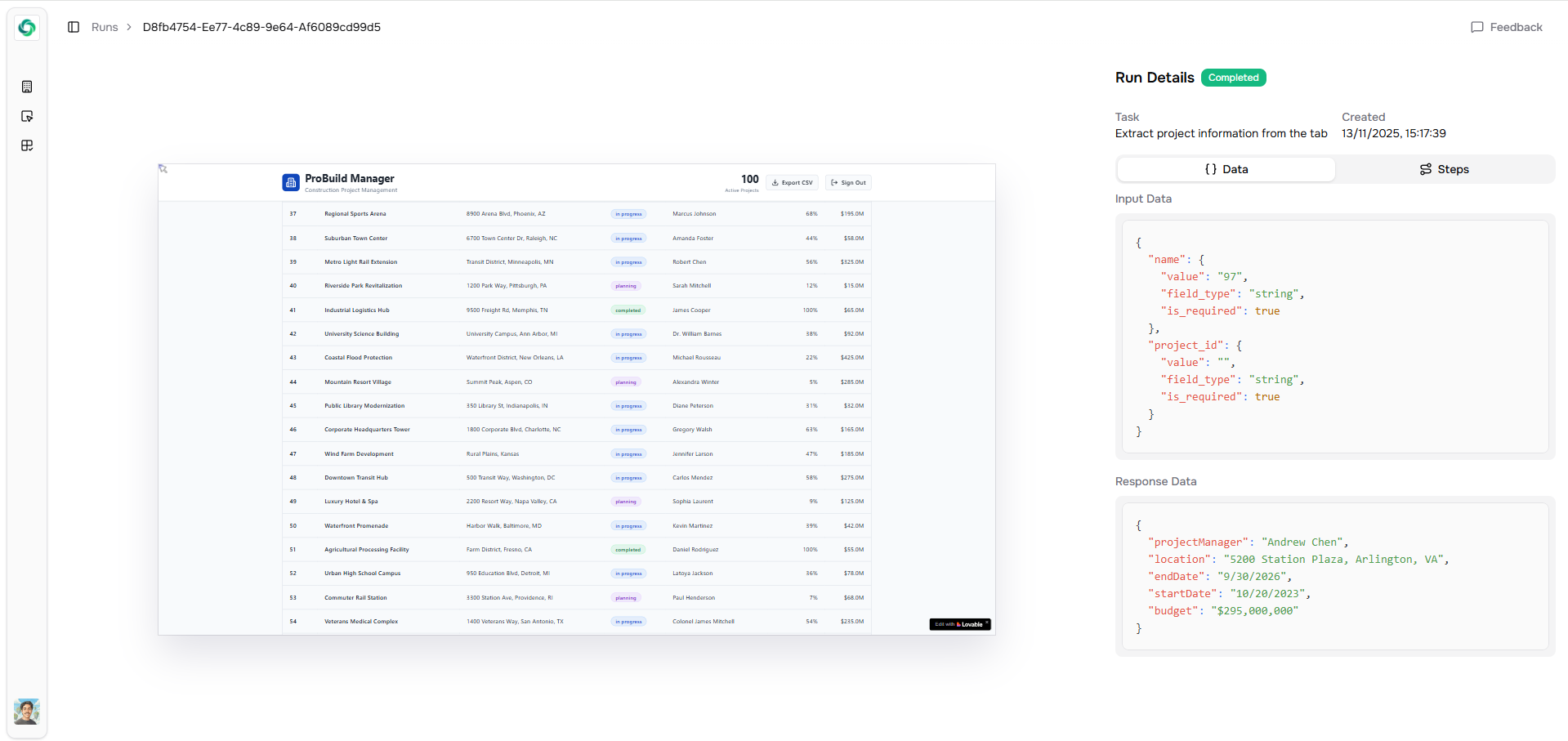
Step 3: Monitor Progress
The Scout will start working immediately. You can watch the Run’s progress in real-time. You’ll see when it starts, when it’s navigating the site, and when it completes.Step 4: Get Your Data
Once the Run completes, the scraped data is automatically available. You can optionally add it to a Workbook where you can validate and clean it.Need Multiple Records?
If you need to scrape multiple records of the same type (like all Projects or all Employees), use Tables instead. Tables automatically handle scraping many records at once.Next Steps
After scraping the data, you can:- Validate it using Templates
- Clean it using Chat if needed