

When you need to scrape many records of the same type—like all Projects, all Employees, or all Orders—Tables make it easy. Tables automatically find all matching records and scrape them all at once.Documentation Index
Fetch the complete documentation index at: https://docs.vern.so/llms.txt
Use this file to discover all available pages before exploring further.
Important: Before running a scrape, your customer must have signed in and authorized Scouts via a Link. The Link allows Scouts to access and scrape data on their behalf.
When to Use Tables
Use Tables when you need to scrape:- Multiple records of the same type
- All items from a list or database
- Data that requires iterating through many pages
Step 1: Create a Task
First, create a Task that tells the Scout how to scrape one record. Go to the Tasks section and click “New Task.” Create a Task like “Navigate to project, scrape all the details on the project info tab.” This tells the Scout what to do for each record.Step 2: Run Scout and Find Sample Records
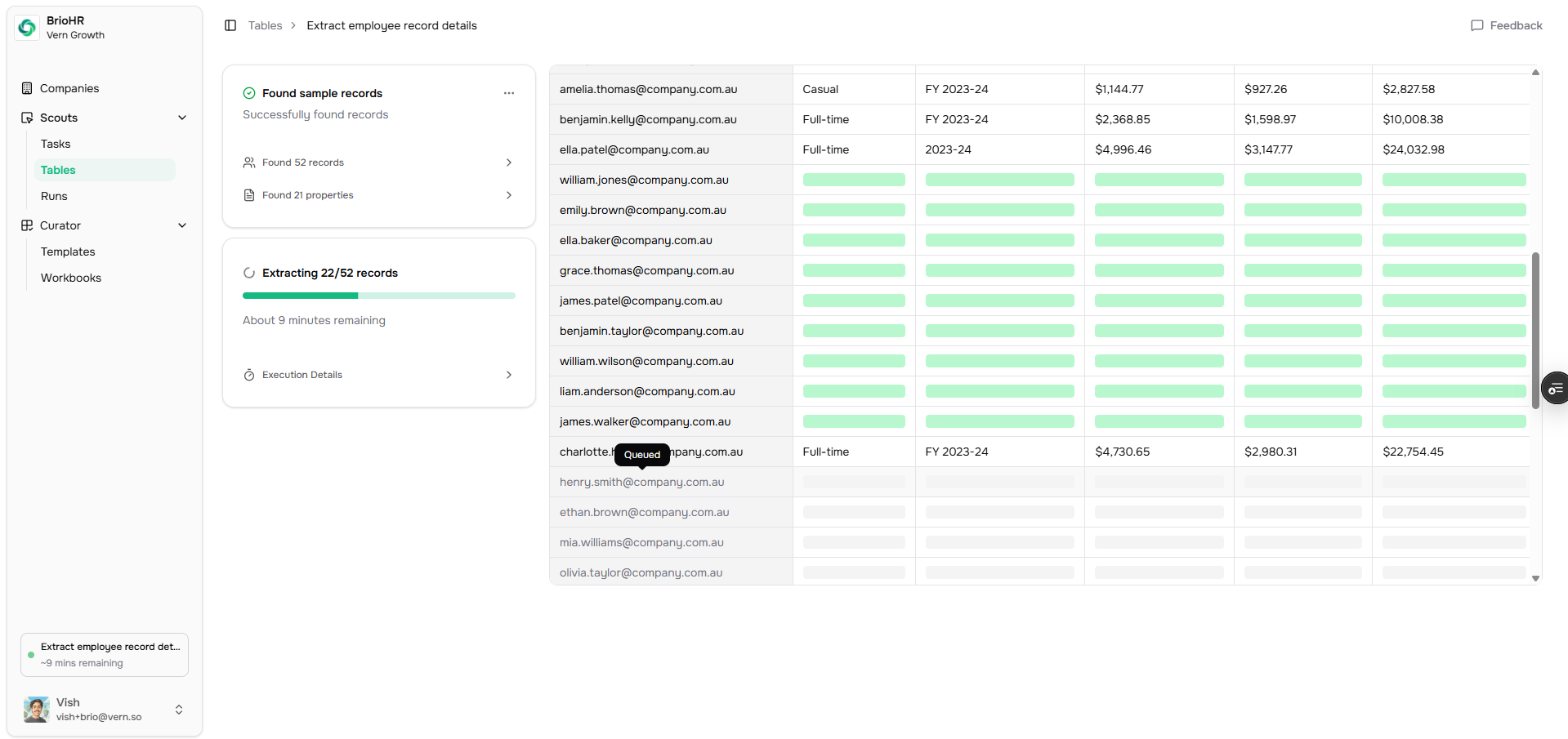
Step 3: Review and Approve Properties
After the Scouts complete finding sample records, you’ll see a list of:- The properties found (like Name, Address, Manager, Duration, etc.)
- The unique identifiers (like Project Name)
Step 4: Scrape All Data
Once you’ve approved the properties and identifiers, proceed with scraping all the data. The system will automatically find all matching records (e.g., all 52 Projects) and scrape the approved properties for each one. You’ll see the scraping progress, and once it completes, you’ll have all the scraped records organized in a clean, structured format. You can optionally add this data to a Workbook where you can validate and clean it.Example: Scraping All Projects
Let’s say you’re onboarding a construction company and need all their projects. You would:- Create a Task: “Navigate to project, scrape all details from the project info tab”
- Go to vern.so/runs, click “Run Scout,” select your Task, click “Create table of runs,” and then click “Find sample records”
- Review and approve the properties (Name, Address, Manager, Duration) and identifier (Project Name)
- Proceed with scraping—the system finds all 52 Projects automatically and scrapes the approved properties
Next Steps
After scraping multiple records, you can:- Validate the data using Templates
- Clean any messy data using Chat