> ## Documentation Index
> Fetch the complete documentation index at: https://docs.vern.so/llms.txt
> Use this file to discover all available pages before exploring further.
# Spot-check and fix
> Catch and fix anything the import agent missed.
The import agent gets most things right, but it isn't perfect. Use this when you need to verify a few values, fix a column it interpreted wrong, or bulk-transform something after the fact.
## Look around the sheet
A sheet behaves like a normal spreadsheet:
* **Click** a cell to select. **Double-click** to edit.
* **Click and drag** to select a range. **Shift+click** column headers to select multiple columns; right-click to bulk-delete or insert.
* **Filter** by validity, completeness, column presence, or duplicates from the toolbar at the top.
* **Pivot** a sheet's rows into columns (or back) when the shape doesn't match what you want.
* **Undo** (Ctrl/Cmd+Z) works across the whole workbook, not just the current sheet.
## Trace a value back with Check
If you're not sure where a value came from, open the **Check** panel on a cell. You'll see:
* The source file and row the value originated from.
* The transformation the agent applied to get it.
* The AI's plain-English explanation of why it chose that value.
This is the audit trail for any cell — useful when a customer challenges a value, or when you're not sure if the agent did the right thing.
## Bulk-fix with chat
For anything bigger than a one-off cell edit, use chat.
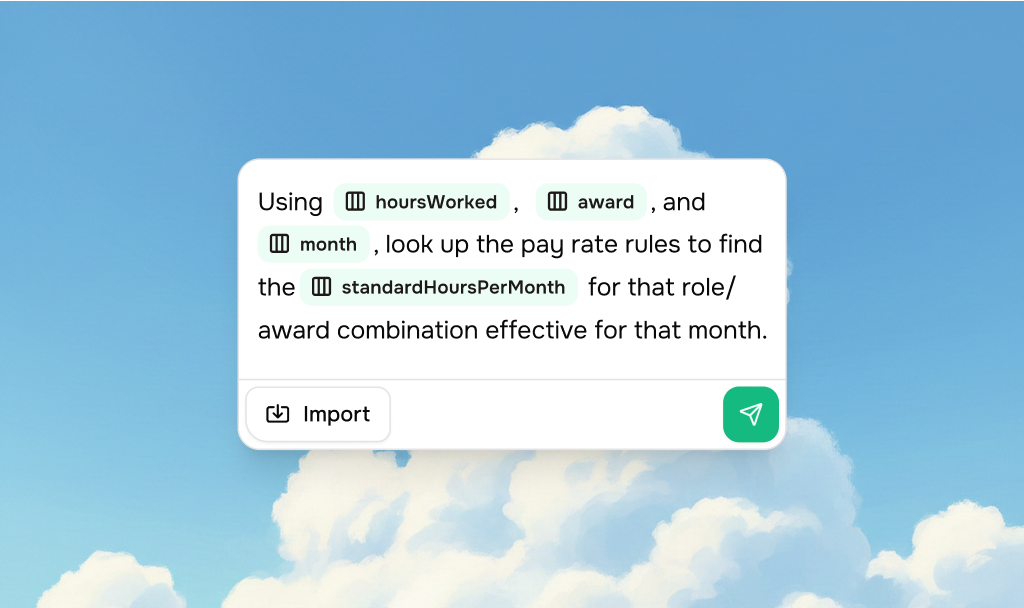 Open the chat panel. Reference columns by typing `@` and picking from the dropdown (works across sheets). Some examples:
* `Fix the format of @Phone Number`
* `Combine @First Name and @Last Name into @Full Name`
* `Extract emergency contact phone numbers from @Notes into @Emergency Phone`
* `Calculate @Age from @Date of Birth`
The chat:
* Persists across reloads and sheet switches — your conversation is saved.
* Lets you **queue** the next message while it's still streaming.
* Lets you **stop** mid-stream if it's heading the wrong way.
* Can call multiple tools in one prompt — "do X and then Y" works.
* Shows a **preview** of multi-step operations before applying them, so you can confirm.
## Templates do the heavy lifting
The chat uses your template's column descriptions and validation rules to know what good data looks like. The better your templates, the better chat's results. If chat is consistently misinterpreting a column, fix the column's description.
## Next
* [How import works](/help-center/import/how-it-works) — to avoid needing to spot-check, get the agent's input right.
Open the chat panel. Reference columns by typing `@` and picking from the dropdown (works across sheets). Some examples:
* `Fix the format of @Phone Number`
* `Combine @First Name and @Last Name into @Full Name`
* `Extract emergency contact phone numbers from @Notes into @Emergency Phone`
* `Calculate @Age from @Date of Birth`
The chat:
* Persists across reloads and sheet switches — your conversation is saved.
* Lets you **queue** the next message while it's still streaming.
* Lets you **stop** mid-stream if it's heading the wrong way.
* Can call multiple tools in one prompt — "do X and then Y" works.
* Shows a **preview** of multi-step operations before applying them, so you can confirm.
## Templates do the heavy lifting
The chat uses your template's column descriptions and validation rules to know what good data looks like. The better your templates, the better chat's results. If chat is consistently misinterpreting a column, fix the column's description.
## Next
* [How import works](/help-center/import/how-it-works) — to avoid needing to spot-check, get the agent's input right.